Quickstart: your first 10 minutes
Get oriented in the workspace, ask your first question, build a report and save it to a dashboard.
1. Find your way around#
After signing in you land in your workspace. The left sidebar is the main navigation and is the same on every page:
| Menu item | What it contains |
|---|---|
| Asky | AI analyst — ask questions about your data in natural language. |
| Agents | AI agents and their suggestions (e.g. Churn Radar). |
| Dashboards | Saved dashboards built from your reports. |
| Insights | Event Analysis, Funnel, Flow, Retention, Session Replay. |
| A/B Test | Experiments and Metrics. |
| ML Lab | Churn Prediction, Product to User, User to Product, B2Mag, Reco AI Agent. |
| Audience | All Users, Segments, RFM. |
| Campaign Optimization | ROAS / ADS Optimization, Flowly, Campaign List, WhatsApp Templates, Flowly SMS, Flowly WhatsApp, Flowly Email, Send Push. |
| Reports | Exports you have generated. |
| Data | Data Integration, Events, Event Properties, User Properties. |
| Applications | Switch between the apps / datasets in your organization. |
Collapsing the sidebar
Use the panel icon at the top-left of any page to collapse or expand the sidebar. Breadcrumbs next to it always show where you are.
2. Ask your first question#
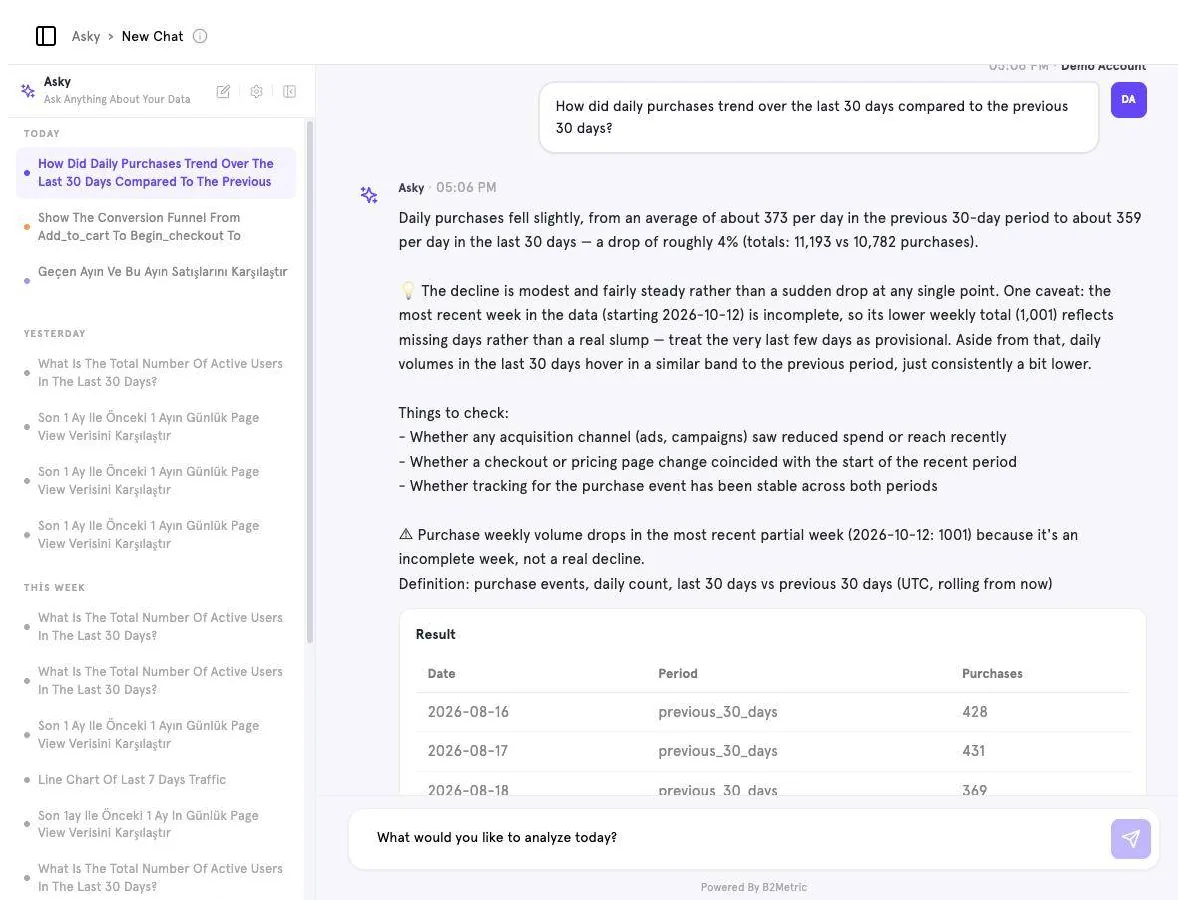
Open Asky
Click Asky in the sidebar.
Type a question
For example: “How did daily purchases trend over the last 30 days compared to the previous 30 days?” — or click one of the suggested questions.
Read the answer
Asky returns a written summary, things to check, the exact definition it used, and a result table or chart.
3. Build a report#
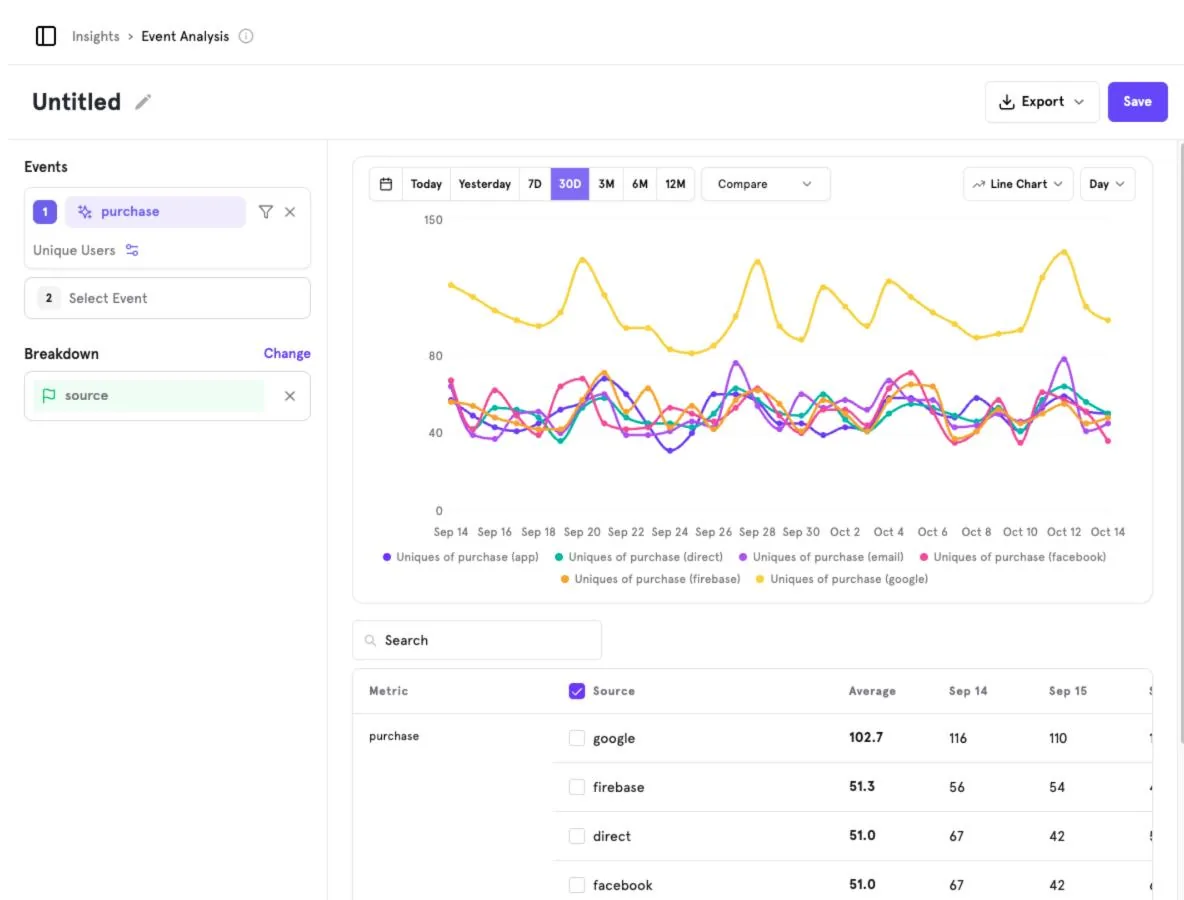
Open Event Analysis
Go to Insights → Event Analysis.
Pick an event
Under Events click Select Event and choose
purchase.Break it down
Under Breakdown add
sourceto split the line by acquisition source.Save
Rename the report from Untitled and click Save. You can then add it to a dashboard.
4. Next steps#
Screenshots captured from the B2Metric E‑Commerce demo workspace, October 2026.